
A useful Search Console report delivers four things: search-performance KPIs (clicks, impressions, CTR, average position), a breakdown of top queries and pages, a clear read on coverage and indexing health, and a repeatable export or dashboard method for tracking it all over time. Search Console stays the source of truth for search metrics, but pairing it with GA4 fills in what happens once someone actually lands on your site.
TL;DR:
- Most reports overlook key metrics like coverage issues, index status, and link profiles, limiting understanding of traffic shifts.
- Combining Search Console with GA4 requires matching date ranges, understanding different event definitions, and accounting for privacy anonymizations.
- Automating recurring dashboards in Looker Studio or BigQuery streamlines tracking but demands consistent data sources and owners for actionable insights.
- Building effective reports depends on assigning clear ownership of fixes and embedding action steps, not just presenting numbers.
- Outsourcing SEO reporting can save time, provided the service delivers transparent methods, scheduled insights, and a focus on actionable recommendations.
Table of Contents
- Which Search Console Reports and Metrics Belong in Every Report
- How to Pull and Combine Search Console Data
- Why Search Console and GA4 Numbers Never Quite Match
- Building a Dashboard Stakeholders Actually Read
- Turning Findings Into Fixes: Cadence and Ownership
- When a Managed Service Makes More Sense Than DIY Reporting
- The Part Most Reporting Guides Get Wrong
- Automating the Reporting So You Can Focus on the Fixes
- Sources
- FAQ
Which Search Console Reports and Metrics Belong in Every Report
Most reports skip half of what Search Console actually offers, then wonder why stakeholders keep asking questions the report can’t answer. Build from these reports every time:
- Performance report: Pull clicks, impressions, CTR, and average position, then group by query, page, device, and country to spot where visibility is growing or stalling.
- Coverage and URL Inspection: List indexing errors and excluded pages as action items, not just a status snapshot. If a page dropped out of the index, name it and flag who fixes it.
- Sitemaps report: Check submission status and parsing errors. This is the fastest way to confirm Google can actually read your sitemap when new content isn’t showing up in search.
- Links report: A quick overview of top linking sites and internal link distribution, useful context when explaining ranking shifts.
- Core Web Vitals and Enhancements: Show failures and trends rather than a single pass/fail moment. A site that passed last quarter and slipped this month tells a more useful story than a static grade.
- Discover and News reports: Include these only when a site is eligible and actually generating Discover traffic. Most local and small-business sites won’t have meaningful Discover data, so don’t force the section.
Google’s own reports at a glance documentation lists Overview, Performance, Coverage, URL Inspection, Core Web Vitals, Sitemaps, and Links as the current full set. If your report skips more than one of these, you’re probably missing the reason behind a traffic shift, not just the number.
How to Pull and Combine Search Console Data
Three methods cover almost every reporting need, and the right one depends on how much history you need and how often you’re repeating the pull.
- CSV export works for fast, one-off checks. Pull it when you need a quick answer for a client call. The catch: exports cap at 1,000 rows and Search Console applies data sampling for privacy on low-volume queries, so don’t treat a CSV as a complete dataset for a high-traffic site.
- Looker Studio is the better choice for recurring client dashboards. Google’s own developer guide for combining Search Console and Analytics walks through connecting both sources so clicks, impressions, and sessions sit side by side.
- Search Console API and BigQuery exports make sense once a site is too large for the UI’s row limits or you need year-over-year trend analysis. Exporting to BigQuery preserves full query-level detail over time, which matters for longitudinal joins with Analytics that a CSV simply can’t hold.
A few habits save real time. Keep date ranges identical across every tool you’re comparing. Decide up front whether you’re analyzing canonical URLs or landing pages, since Search Console aggregates under the canonical and Analytics tracks the URL a visitor actually landed on. And remember that very low-volume queries get anonymized or dropped from exports, which is a privacy feature, not a bug in your pull.
Pro Tip: Build one Looker Studio template you reuse across clients, with the date range and filters as variables. Swapping the data source takes minutes; rebuilding a dashboard from scratch every month does not.
Why Search Console and GA4 Numbers Never Quite Match
They’re measuring different things, so expecting them to match is the first mistake. A Search Console “click” is registered the moment someone taps a search result. A GA4 “session” only counts once the page loads and the analytics tag fires, which means anyone with JavaScript disabled, a slow connection, or an ad blocker can show up in one tool and vanish from the other.
Timing compounds the gap. Search Console typically runs 2 to 3 days behind real-time reporting, and it reports on Pacific Time regardless of where your business sits, while GA4 usually reports in the property’s configured time zone. Compare last Tuesday in both tools without adjusting for that, and you’re comparing two different days.
Run this checklist before telling a client the numbers are broken:
- Confirm redirects and canonical tags aren’t sending Search Console credit to a different URL than the one Analytics tracks.
- Check whether the Analytics tag is firing on every template, particularly on paginated or filtered pages.
- Account for users with JavaScript disabled or cookies blocked, since Google names both as documented causes of discrepancies.
- Match date ranges and time zones exactly.
- Remember Search Console aggregates by canonical URL, which can misalign with the landing-page URLs Analytics reports.
Document the expected gap in every report you send. A line explaining that clicks typically run somewhat higher than sessions due to JS-disabled traffic helps prevent confusion before the report is reviewed.
Building a Dashboard Stakeholders Actually Read
A stakeholder opening a report wants an answer in the first five seconds, not a spreadsheet to reverse-engineer. Structure it in layers.
The top band carries three numbers: clicks, impressions, and CTR trend, plus one sentence stating what happened and why.
Below that, build panels for:
- Top queries and how each is trending week over week
- Top landing pages by clicks and impressions
- Coverage and URL Inspection issues, flagged by severity
- New indexing changes since the last report
- A links summary showing new referring domains
Color-coding Search Console metrics separately from GA4 metrics in the same dashboard keeps readers from assuming clicks and sessions are the same figure, a mistake that causes more client confusion than almost anything else in reporting.
Automate the delivery once the layout is set. Scheduled Looker Studio emails cover most clients; sites with heavier data needs benefit from an API pull into BigQuery on a fixed schedule. Either way, agencies handling multiple accounts should template the fields (client name, date range, filters) once and reuse the shell every month rather than rebuilding it. If you’re using performance data to guide content decisions, connecting report findings to content strategy keeps the dashboard from becoming a report nobody acts on.
Turning Findings Into Fixes: Cadence and Ownership
A report full of numbers with no owner attached just sits in an inbox. Set a cadence and stick to it:
- Weekly: A quick scan of Performance and Coverage for anything that spiked or dropped sharply.
- Monthly: A full deck covering KPIs, top movers, and outstanding coverage or indexing issues.
- Quarterly: A strategic review tying Search Console trends back to broader organic traffic goals and content plans.
Assign ownership before an issue shows up, not after. Someone monitors the dashboard, someone owns content fixes, and someone (usually a developer) owns technical fixes and signs off on reindex requests.
When something looks wrong, work the same sequence every time: form a hypothesis, check for SERP or snippet changes, run URL Inspection on the affected pages, fix the root cause, then request indexing. Every issue flagged in a report needs one line stating the recommended next step and who owns it. A report without that line isn’t a report, it’s a data dump.

Pro Tip: Keep a running log of every reindex request and its outcome. Six months in, that log tells you which fixes actually moved rankings and which ones didn’t do anything.
When a Managed Service Makes More Sense Than DIY Reporting
Building this workflow in-house takes real time. Limited staff bandwidth is the most common reason teams outsource reporting, closely followed by wanting a steady cadence of content and backlink work they don’t have hours to produce themselves.
Whatever the setup, automated reporting should include scheduled published insights, a prioritized action list (not just raw numbers), and raw-data access so anyone can audit the findings independently. That transparency matters more than the polish of the dashboard itself.
A managed service delivery model can include monthly bundles of published SEO articles, backlinks, and reporting tied to a fixed cadence, built so a business owner without an in-house analyst still sees exactly what changed and why. Any managed service worth paying for should offer the same: documented methodology, access to the underlying data, and a clear turnaround time on reporting.
The Part Most Reporting Guides Get Wrong
Most guides to Search Console reporting treat the tool like a scoreboard: pull the numbers, paste them into a slide, move on. That’s backwards. The value isn’t in the number itself, it’s in the action attached to it. A CTR drop on a top query means nothing on its own; it means something once someone rewrites the title tag and checks it again in three weeks.
The conventional advice to “check Search Console weekly” also undersells the harder part, which is reconciling it against GA4 without triggering a client panic every time the two don’t match. Understanding why clicks and sessions diverge is worth more than any dashboard template. Get that right and the reporting almost writes itself.
If there’s one place to start, it’s not the dashboard design. It’s deciding, before you build anything, who owns each category of fix. A gorgeous Looker Studio report that nobody acts on is worse than a plain CSV that gets read every Monday morning.
— Mike
Automating the Reporting So You Can Focus on the Fixes
Mysearchhero exists for the business owner who wants the insight without building the workflow above from scratch. Instead of assembling Looker Studio templates, chasing API pulls, and writing monthly decks by hand, some services offer scheduled deliverables (published SEO articles, backlinks, and reporting) on a fixed monthly cadence, with clear visibility into what shipped and what it’s expected to do.
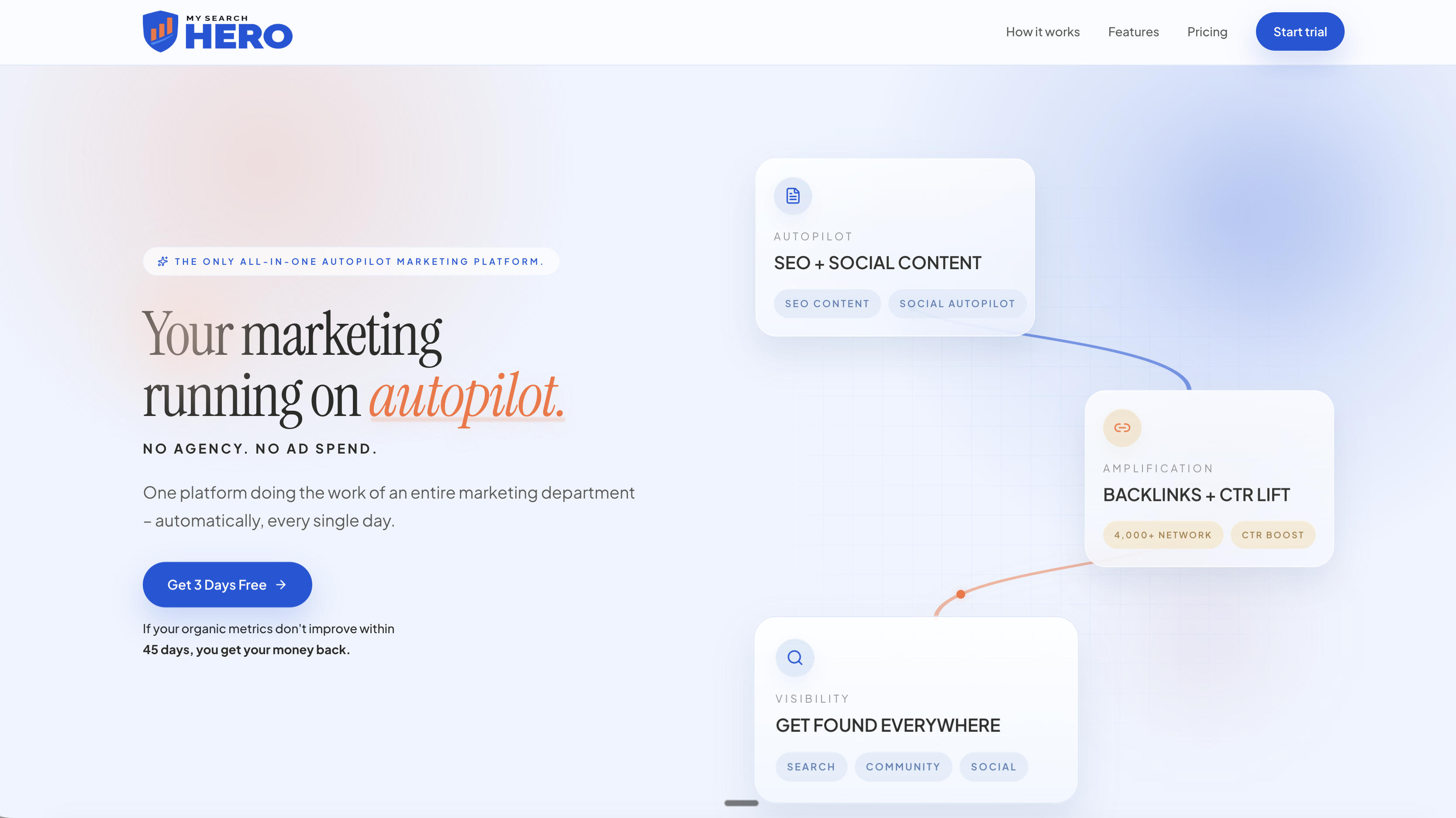
A demo or trial should show you exactly what a typical month looks like: how many articles get published, how backlinks and Reddit mentions get placed, and how reporting on performance gets delivered back to you. If the current reporting setup takes more hours than the insights are worth, check out Mysearchhero and see what a monthly deliverable actually looks like before deciding whether to build the workflow yourself.
Sources
- How are you performing on Google? – Search Console Help
- Using Search Console and Google Analytics data for SEO
- Google Search Console vs Google Analytics 4 — MeasureSchool
- Performance report (Search results): Troubleshooting data discrepancies – Search Console Help
FAQ
Can I tell who has googled my name?
No. Search Console shows aggregated query and click data for a website you own and verify, not who searched for it or who clicked a result.
How do I report a Google search result?
Google provides a legal removal request process and separate tools for outdated content or personal information; Search Console itself isn’t used to report search results.
What is an SEO report?
An SEO report tracks search-performance metrics like clicks, impressions, CTR, and rankings alongside site health signals such as indexing and Core Web Vitals, usually delivered on a recurring cadence so stakeholders can see what’s changing and why. Services like Mysearchhero build this reporting into their monthly deliverables automatically.
What is Google Search Console used for?
Search Console monitors how a website performs in Google Search, covering search performance metrics, indexing status, sitemap health, mobile usability, and Core Web Vitals.
Why do my Search Console and GA4 numbers never match exactly?
They measure different events. Search Console counts a click the moment someone taps a result; GA4 counts a session once the page loads and the tag fires, and Search Console data also runs 2 to 3 days behind near real-time analytics.